How to Listen to Music While Gaming Without Missing Sound Cues
By AudioPhil · Published · Updated
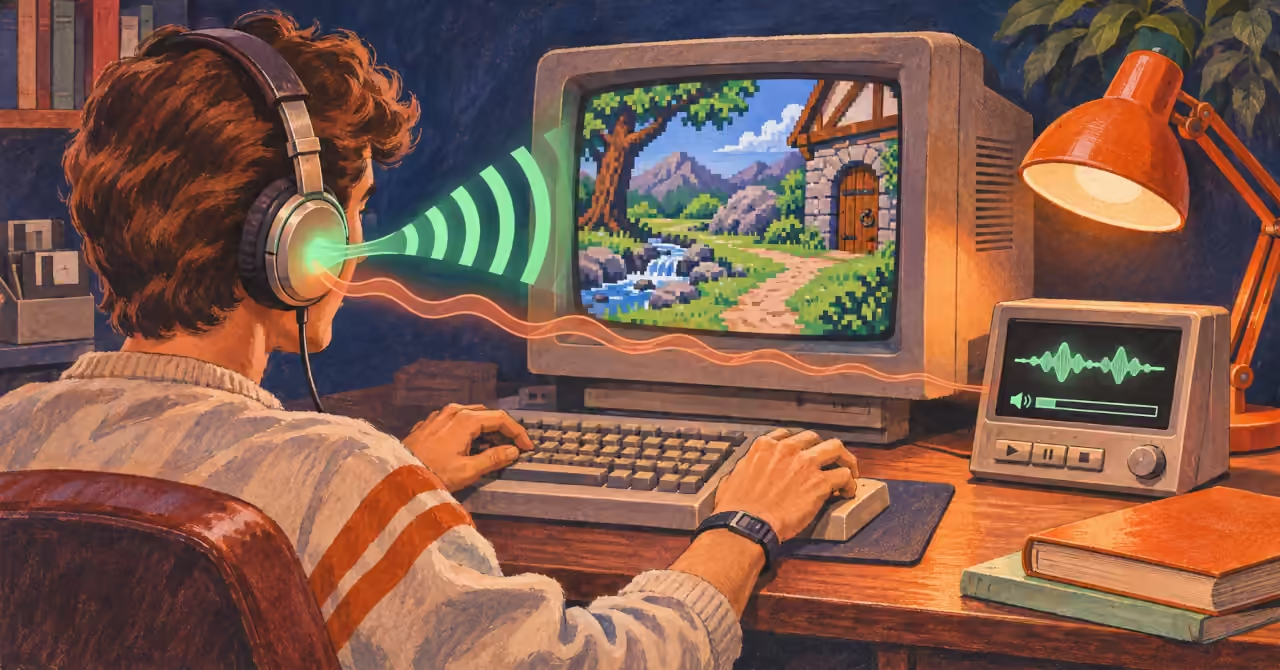
If your playlist makes footsteps, dialogue or team chat harder to hear, start with the game’s audio menu. Lower its music slider if it has one, leave effects and voices audible, then bring up your playlist during a familiar section. When a sound you rely on becomes harder to pick out, turn the playlist down or pause it for that part of the game.
Decide what you need to hear
Start with the activity you have planned for the next half-hour. In a solo building session, you may only need enough game sound to hear that a block has been placed or that something has happened nearby. During a story mission, a character may give you directions while you are looking at something else. In a team match, a short callout can matter more than any other sound in your headphones. The same playlist can sit comfortably under the first session and be a nuisance in the other two.
Think about sounds in terms of what they tell you. A footstep can tell you that something is moving. The direction of the step may tell you which side to check. A short click or chime can confirm an action you have already taken. A line of dialogue can tell you where to go next. Pick two cues you actually use. “I can still hear the game” is a broad impression. “I heard the door open behind me while the chorus was playing” is a more useful check.
Give the game’s own soundtrack a listen before deciding how much of it to keep. Music can give a place its character or make a transition feel deliberate. If you enjoy that part of a game, keep it for a first visit and use your own playlist on familiar routes. That gives you a useful distinction between a soundtrack you want to experience and music you want in the room while you play.
Set the game audio first
- Game music. With your playlist paused, lower the game’s music slider if there is one. If the soundtrack helps you anticipate an encounter or signals a change in play, leave it audible and try keeping your playlist quieter or pausing it for that section.
- Effects, dialogue and chat. Listen for the sounds you need at your normal listening level. Depending on the game, that might be a footstep, a spoken objective or a teammate’s callout. If you cannot hear a voice clearly, look for a dialogue or voice-chat slider. If chat runs through a separate app, adjust it there.
- External playlist. Start it low using the music app’s own volume control where available. Check the mix during a busy passage and again when a louder track comes on. If that track covers a cue, lower the playlist or take the track out of your gaming rotation. Your master volume changes the overall level and leaves the balance between sounds largely where it was.
If the game only gives you a master volume slider, leave it at a comfortable level and make most of your adjustments in the music app.
Use the controls that affect the problem
It helps to know where each sound is coming from. The game may put its soundtrack, effects and dialogue on separate sliders. Your music app has a separate stream of audio. Team chat may come from either the game or another app. Finally, the volume control on your headphones, speakers or controller can change what you hear overall. Start with the control closest to the sound that is causing trouble.
For example, if your playlist and the game’s soundtrack are both prominent, turn down one of those two sources. If teammates are hard to understand even with the playlist paused, sort out the chat level before bringing music back. If one friend is consistently quieter than everyone else and your chat app offers per-person volume, adjust that person first. Raising all the voices can make the loudest teammate harder to listen to while doing little for the original problem.
If you switch between headphones and speakers, check the mix again. Use the same short passage each time so you have a reference. A cue that is obvious through headphones might be easy to lose when you move farther from the speakers or there is conversation in the room. Keep a convenient pause control within reach. The best setting for a relaxed session can stop working as soon as someone starts talking.
Try three passes through the same area
Choose a short route in a familiar game where you can repeat a few actions. In Minecraft, for example, walk the same stretch beside running water and open the same door. Listen for your steps as you approach the water and for the door as it opens. For a game where team chat matters, use a practice lobby and ask a friend to repeat a callout while you move.
- Game audio alone. Walk the route with your playlist paused. Pick two sounds you can hear clearly and use them as your reference for the next two passes.
- Quiet instrumental track. Keep the game settings fixed and repeat the route. Note whether you can still hear both sounds easily.
- Your usual playlist. Repeat the route again with a track you’d normally play. Try a busy or vocal passage and listen for the same cues.
Jot down which cues were clear, which took effort to hear and which you missed. If a cue takes effort to hear on a route you already know, try another pass with the playlist lower. Use the level at which you can hear the cues comfortably as your starting point.
For a closer comparison, run the second and third passes at roughly the same perceived playlist loudness. That makes it easier to tell whether a track’s arrangement is the issue. If your usual track is much louder, repeat the pass with it turned down before deciding to remove it. Keep the listening position and game settings fixed for all three passes. If a game cue fails to play on one pass, repeat that part of the route before drawing a conclusion.
There is no need to record every detail. A note such as “speakers, building playlist, footsteps clear, door sound harder to hear in the chorus” gives you enough to revisit the mix later. If you play on several devices, record where you adjusted the level as well. A setting saved in the music app is easier to recover when you know which control you moved.
Choose a playlist for what you are doing
A playlist can work beautifully for one session and still be a poor fit for another. Start with a few tracks whose openings, choruses and endings you know. A steady intro tells you very little about the volume you will want when the full arrangement arrives. Listen through the busiest passage before adding a track to a playlist you plan to leave running behind the game.
- Building, gathering and familiar routes
- Give yourself room for music you enjoy. Check the sounds that mark a change in what you are doing, such as a tool breaking, a warning tone or the approach of an enemy. During a long session, notice whether you keep reaching for the volume when the playlist changes tracks.
- Story missions and exploration
- Try playing a new area with its original soundtrack first. When you bring in your own music, keep the playlist easy to pause at the start of a conversation. Subtitles can help you recover a line you missed, especially in a noisy room. They also ask you to look at the screen at the right moment.
- Racing and time trials
- Run a familiar lap and listen for the cues you already use, such as engine pitch approaching a shift point or the sound of tyres under braking. Check a corner where you normally listen closely. If a track makes those cues hard to distinguish, try it at a lower level before changing anything in the game mix.
- Co-op and competitive matches
- Check a quiet moment and a busy one. You might hear a callout clearly while standing still and miss half of it once movement, effects and several voices overlap. Start with chat and game effects audible. Bring music up only as far as the busiest part of the match allows, or save the playlist for menus and breaks.
Find out what is covering the cue
When two sounds compete for your attention, audio engineers call the effect masking if one sound makes the other harder to hear. You can hear it for yourself by playing a track behind a spoken line. The line may be clear over a sparse passage and hard to follow once the singer comes in. It can also disappear beneath a dense instrumental passage. The label on the playlist tells you less than listening to the two sounds together.
When you lose a cue mid-session, pause the playlist for a moment. If the cue returns, lower the music and try again during the same sort of gameplay. If you still struggle to hear it with the music paused, look at the game or chat mix. Adjust one control at a time so you can tell what changed.
- The playlist jumps in level between tracks. If your player offers volume normalisation, try it and listen across a few transitions. A track can still have a quiet opening and a loud chorus. Take out songs that repeatedly need a manual adjustment.
- Dialogue is fine until the effects get busy. Pause the external music and replay a short passage. If the game has separate effects and dialogue sliders, try lowering effects slightly and listen again. Recheck any effects you use as cues before keeping the new setting.
- You hear that something happened but cannot place it. Pause the playlist and check the same cue from two directions. If the position is easy to identify with the music paused, turn the playlist down and repeat. If direction is unclear in both passes, check the game’s output settings and your actual listening setup before changing the playlist again.
- The mix changes when someone starts talking. If your app or device lowers other audio during chat, listen for what happens to both the playlist and the game. A setting that makes voices clear can also pull down effects you were relying on. Change the amount of attenuation if your setup offers that control, and check it with a teammate speaking while you play.
Change the mix when the game changes
Once you have a mix you like, note the game and playlist settings somewhere easy to find. For a game you return to often, two starting points may be enough: one for familiar solo play and one for sessions where you need to hear every callout. Lower or pause the playlist when the activity changes, then bring it back when there is space for it. A good gaming playlist earns its place by being enjoyable at the level you can actually use.
For more on how a game’s soundtrack shapes atmosphere, see Tune In, Power Up: Music Strategies for Gamers.